

Suggestions: what KlaritiQ says to do next, and why
Suggestions is the inbox of things KlaritiQ thinks you should do next, drawn from your documents, your scores and your assessments. Each item says what triggered it, so you can judge it and then turn it into a real task or dismiss it.
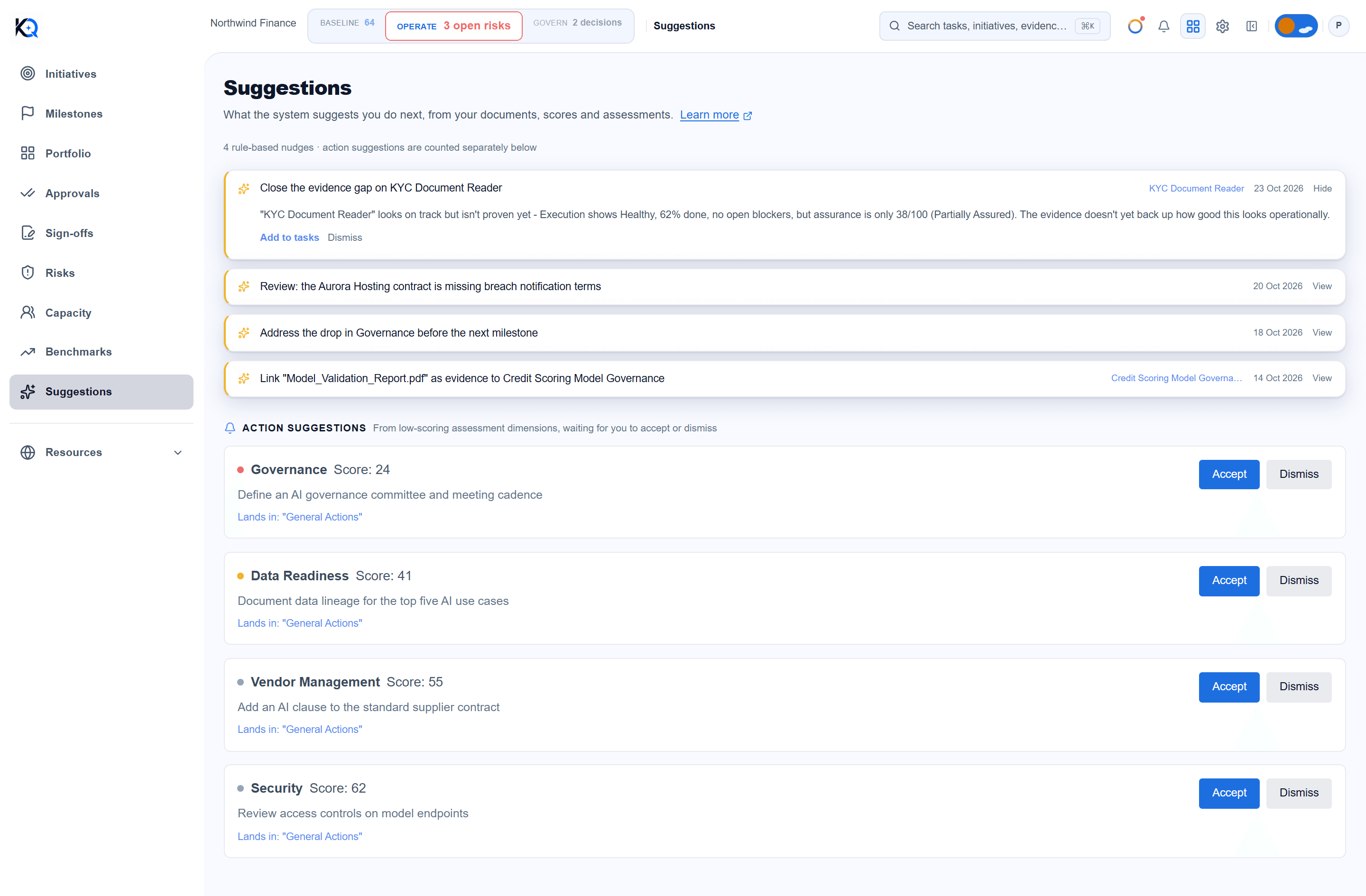
What are the two kinds of suggestion?
The page has two lists because they come from two different places.
- The first list holds rule-based nudges, triggered by something that happened in your workspace.
- Action suggestions (below it) are proposals from low-scoring assessment dimensions, waiting for an owner or admin to accept or dismiss.
Admins also see a line above the first list: how many rule-based nudges there are, with action suggestions counted separately. The rules are fixed. A suggestion is a prompt to a person. It is not evidence and it does not change a score.
Where do the first suggestions come from?
They are worked out whenever the page loads, from fixed rules. Documents and score changes are looked at over the last 14 days.
- A confirmed document upload whose review proposed new work, or flagged a vendor risk.
- A score drop of 3 points or more on a readiness dimension after a reassessment.
- A gap closed: a new document appears to fill a gap on a blocked initiative.
- Looks on track but isn't proven: an initiative that looks Healthy on delivery while its assurance is weak.
- Assurance dropped by 5 or more points in a week on an initiative.
- A pattern: three or more initiatives weak on the same dimension.
A dismissed suggestion does not come back. If someone dismisses three suggestions of one type in a row, with none actioned in between, KlaritiQ stops creating new ones of that type.
Where do Action suggestions come from?
After an assessment is scored, each dimension below 70 can produce one. Under 30 is high priority, under 50 is medium, and 50 to 69 is low. Dimensions at 70 or above get none. A new assessment that scores the same dimension below 70 replaces the earlier pending suggestion for it.
The list is sorted high priority first, then oldest first, and shows up to six. View all N suggestions opens the rest. Each card says where it will land: the General Actions initiative.
How do you act on a suggestion?
Open a suggestion with View. On an item in the first list:
- Choose Add to tasks. If it is not tied to an initiative, pick one under Attach the resulting task to first. It becomes a task, not started, with medium priority.
- Or choose Dismiss to remove it.
On an action suggestion, Accept creates the task straight away. Open the card instead to set an Owner, Target date and Departments, then Accept & Create Action. Dismiss removes it and records it as rejected.
Who can see and act on them?
Every member can see the first list. Only owners and admins get the buttons, the action suggestions section and the nudge count. Light Agents can read the list but cannot act on it.
How is this different from suggestions inside an initiative?
An initiative's own page shows up to three suggestions that are tied to that initiative. They are the same items, so acting on one removes it from both places.
Common questions
Why is my list empty? No open suggestions means nothing is pending. A load failure shows Couldn't load suggestions and Retry instead.
Do suggestions count as evidence? No. Add evidence separately.
Where does the new task go? To the initiative you chose, or to General Actions for an accepted action suggestion. See Milestones and tasks.
Was this article helpful?
Community Questions (0)
No questions yet. Be the first to ask!
Still have questions?
Contact support