

Vendor Check lets you review a vendor's document before you buy
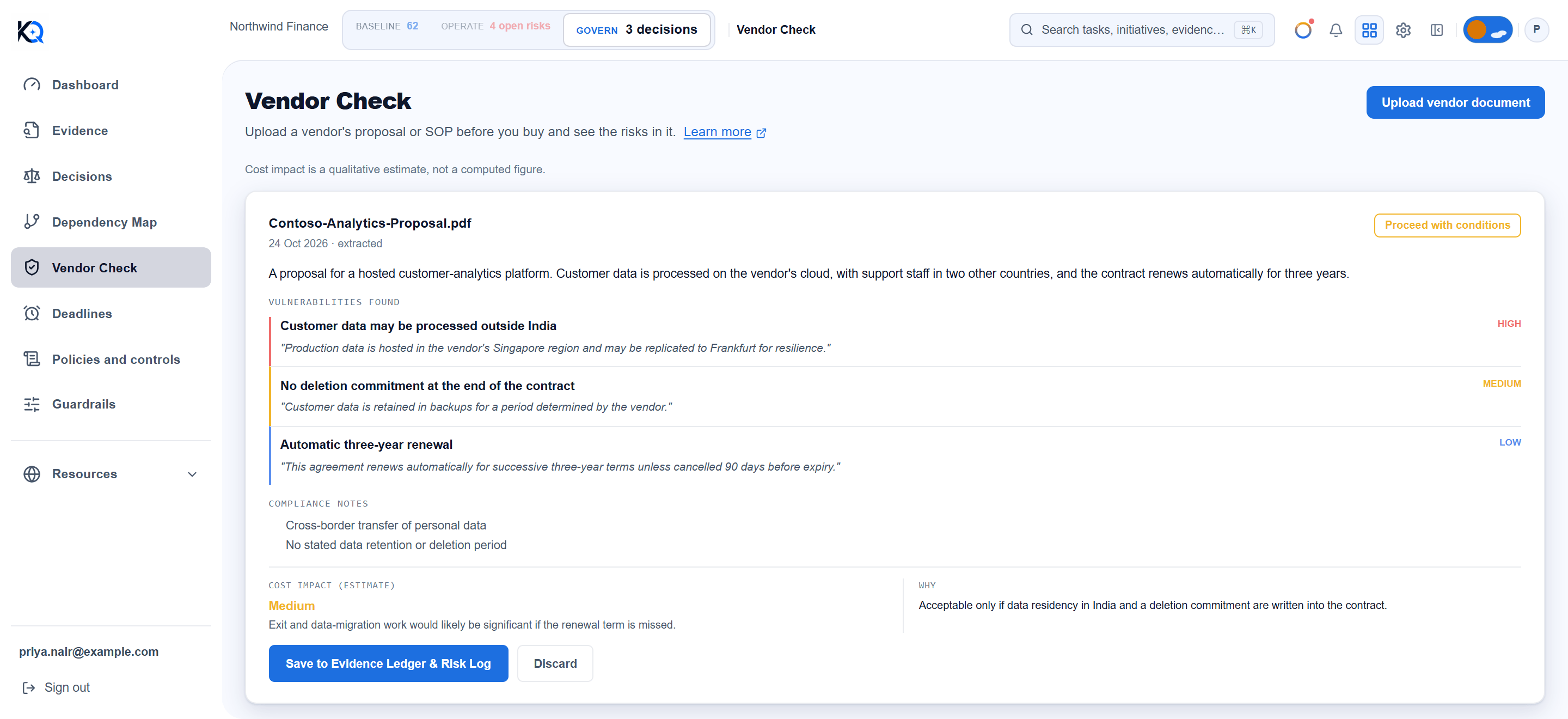
Vendor Check is a pre-procurement review. You upload a vendor's proposal, SOP or architecture document before you sign anything, and KlaritiQ returns the concerns it finds in that document, each one with a quote from the text, so you can judge it yourself.
How do I run a vendor check?
- Open Vendor Check under Govern and choose Upload vendor document.
- Pick the file. The card shows Analyzing… and refreshes by itself every few seconds.
- Read the result.
- Choose Save to Evidence Ledger & Risk Log or Discard.
Nothing is written to your records until you choose Save.
Which files can I upload?
PDF, PNG, JPG, JPEG, WebP, GIF, TXT, MD and CSV, up to 20 MB each. The server also checks that a file's contents match its type, so a renamed file is refused. For text files, only the first 150,000 characters are read.
If you upload exactly the same file twice, KlaritiQ refuses and tells you when it was first uploaded. That check covers every document your organization has uploaded, including ones in Evidence.
What does the result show?
- Summary: a few sentences on what the document is.
- Vulnerabilities found: each concern is rated High, Medium or Low and shown with a quote. A concern that comes back without a quote is dropped, never shown.
- Compliance notes: general risk categories the document touches, such as cross-border transfer of personal data. They are not statute citations.
- Cost impact (estimate): Low, Medium or High with one sentence of reasoning. It is qualitative. The page itself states that cost impact is not a computed figure, and no rupee amount is produced.
- Why and a badge: Proceed, Proceed with conditions or Escalate for review. If the reading returns no valid recommendation, the badge defaults to Escalate for review.
The reading is produced by an AI model from the document's text, so treat it as a prompt for your own review, not a verdict. The page does not check each quote against the document for you. Find the sentence and read it in context. The document is sent to an AI model provider to be read, see sub-processors.
Who can use Vendor Check?
Everyone in the organization can open the page and read results. Uploading, saving, discarding and retrying require an owner or admin. The upload button is hidden only for light users, so a member who tries is told the action needs an owner or admin role.
What is kept when I save?
Save to Evidence Ledger & Risk Log creates:
- Two records in Evidence. One is the document itself, recorded as asserted by you. The other is the AI reading, marked as AI and pointing back to the document record. AI output is never evidence on its own.
- One entry in Risks for each High or Medium concern, with the quote in its description. Low concerns are not logged.
The uploaded file is then deleted from storage, unless your organization has switched on document retention. Discard also deletes the file and keeps a "Discarded" line in the list.
Why did my check fail or disappear?
If the reading fails, the card shows the error and a Retry button. A reading stuck for 10 minutes is marked failed. A check you neither save nor discard within 48 hours expires and its file is deleted, so decide while it is fresh.
What does Vendor Check not do?
It does not contact the vendor, certify them, give legal advice or put a price on the risk. It reads one document, so a concern missing from the document will not appear.
Common questions
Can I check a scanned document? You can upload images (PNG, JPG, WebP, GIF) as well as PDFs, and the document is read as an image.
Does a Low concern create a risk? No. Only High and Medium concerns are logged in Risks.
Why can I see the Upload button but not use it? The button is hidden only for light users. The server allows owners and admins only.
Was this article helpful?
Community Questions (0)
No questions yet. Be the first to ask!
Still have questions?
Contact support