

Capacity: check skills, assignments and bottlenecks
Capacity shows whether you have the people and skills for your initiatives, and where work is piling up. It answers "where will we get stuck?" using the assignments and skills your admins have recorded, not a guess about hours.
What does Capacity show?
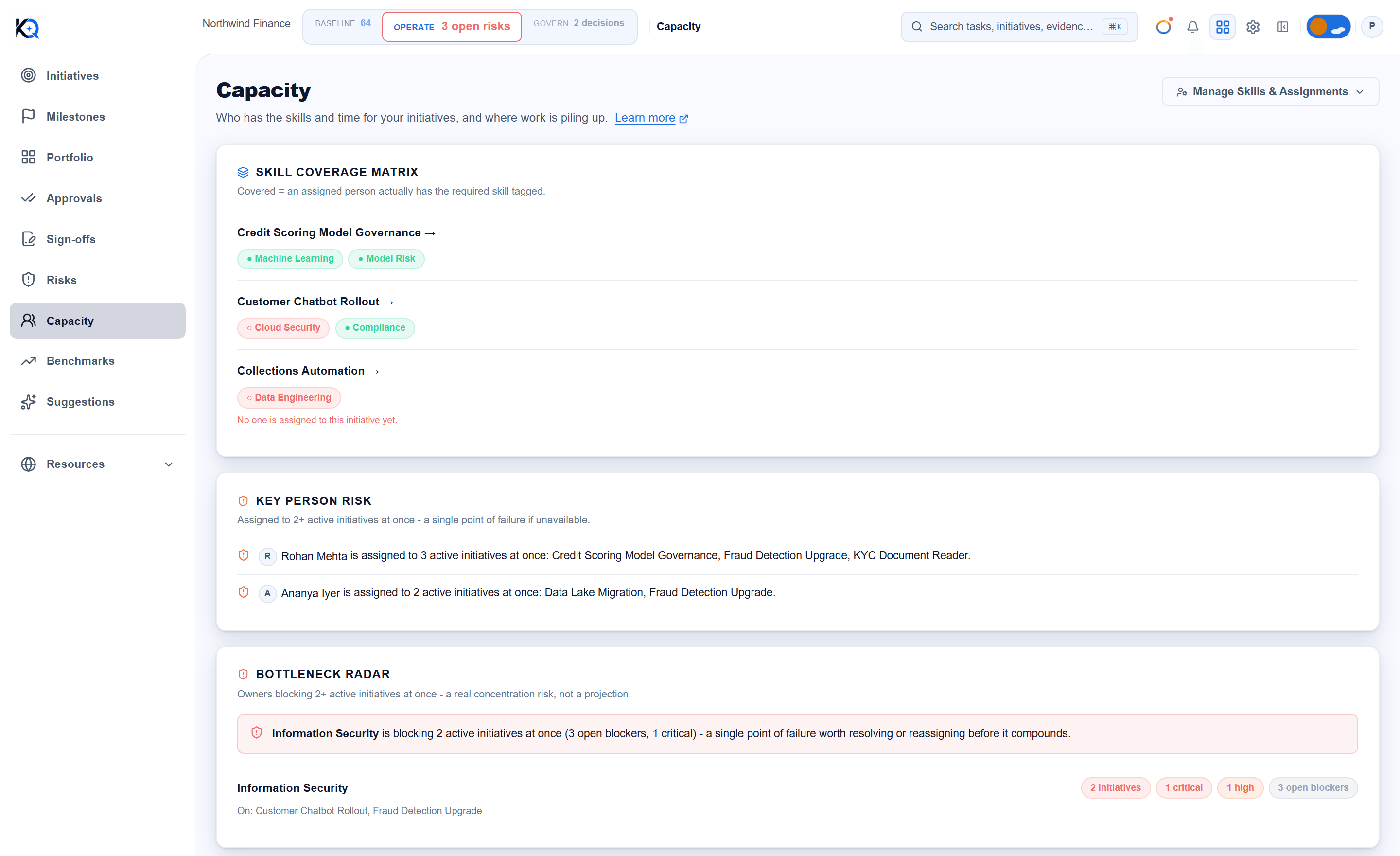
The page has four sections, from top to bottom:
- Skill Coverage Matrix: for each initiative that has required skills, one chip per skill.
- Key Person Risk: people assigned to two or more active initiatives at once.
- Bottleneck Radar: owner teams blocking two or more initiatives.
- Allocation: Allocated headcount, Active org members and an Allocation percentage.
Everyone in the organization can read it. Only owners and admins see the Manage Skills & Assignments button.
How does skill coverage work?
An admin lists the skills an initiative needs and the skills each member has. A chip is green and counts as covered only when a person who is assigned to that initiative has that skill on their own member profile. Matching ignores capital letters and spaces at the ends. A red chip means nobody assigned has it, and a note appears when no one is assigned at all.
The optional skill typed when you assign someone is a label on the assignment. It does not make a skill count as covered. Only the member's own skills do.
What counts as a key person risk or a bottleneck?
- Key Person Risk lists each person assigned to two or more active initiatives (not completed or cancelled), with the initiative names. It counts initiatives, not hours: one person on three initiatives is flagged whatever their share of each.
- Bottleneck Radar groups open blockers on active initiatives by their owner team, a free-text name set on the blocker. A team blocking two or more initiatives gets a red banner. The chips show critical and high counts and the open blocker total. Blockers with no owner team are not counted, so set owner teams in the Dependency Map or on the initiative.
What do the Allocation numbers mean?
Allocated headcount is the number of different active people with an assignment on an active initiative. Active org members is everyone active, not counting Light Agents. Allocation is the first divided by the second, and turns amber with over allocated above 100%. Department-scoped members see only their own department's initiatives and members, plus organization-wide ones.
How do admins manage skills and assignments?
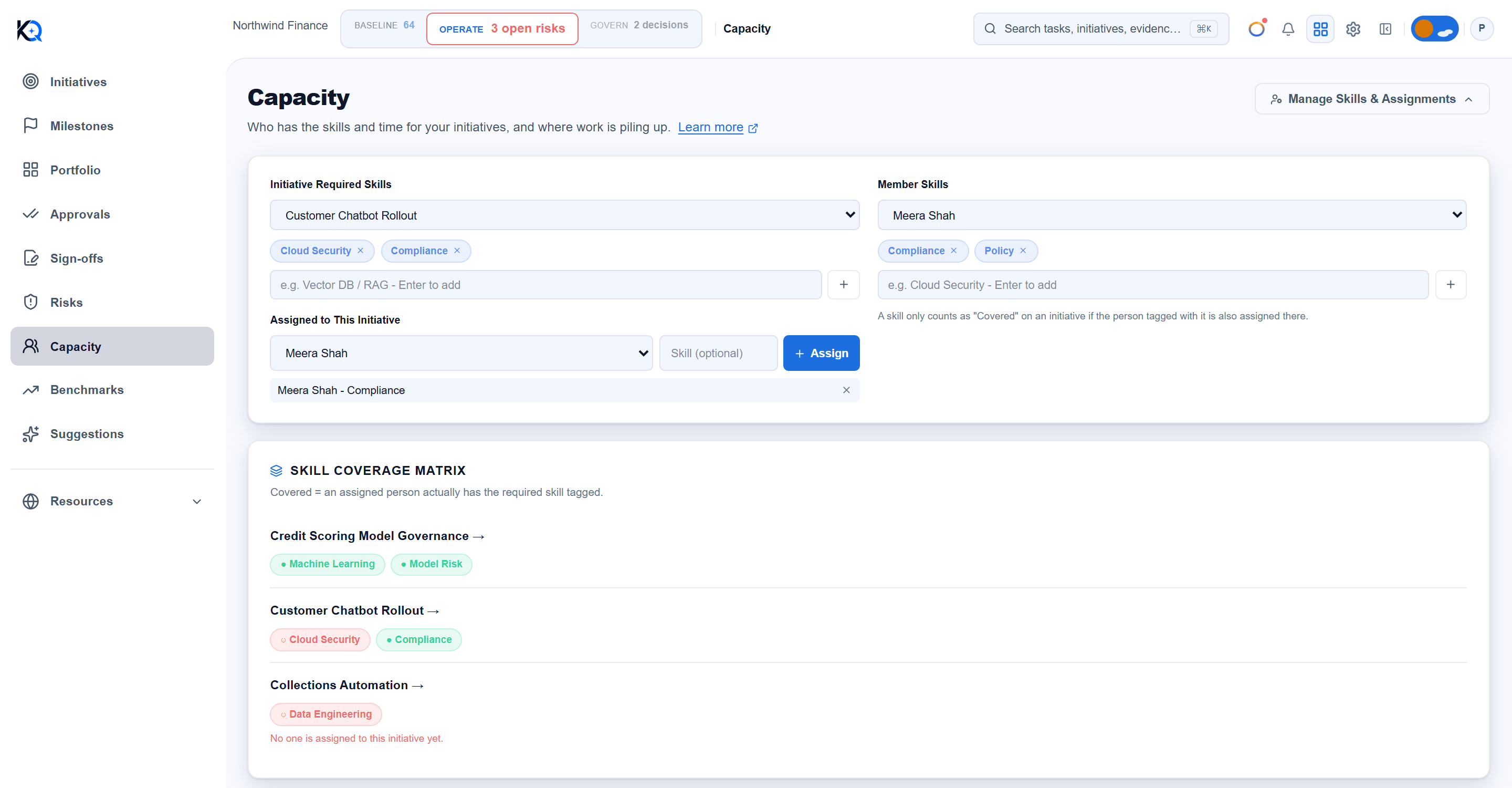
- Select Manage Skills & Assignments.
- Under Initiative Required Skills, pick an initiative, type a skill and press Enter.
- Under Assigned to This Initiative, pick a member, add an optional skill label and press Assign. Remove someone with the x. The person must be an active member.
- Under Member Skills, pick a member and add or remove their skills.
If the initiative has no owner, KlaritiQ offers to make the person you just assigned the owner too. It never replaces an existing owner. If the server refuses a change, the reason appears in a red bar in the panel.
Common questions
Why is someone assigned that I never assigned? When the page loads, each active initiative's owner is added as an assignee if they are an active member and are not already assigned.
Does Capacity track hours or leave? No. It counts people on initiatives, nothing more.
What if Capacity cannot load? You see Couldn't load capacity data with Retry. Not enough data to compute capacity yet appears only when there is no result to show.
For the initiatives themselves, see Managing initiatives and Portfolio.
Was this article helpful?
Community Questions (0)
No questions yet. Be the first to ask!
Still have questions?
Contact support