

Organizations: Individual, Team and Enterprise Assessments
The Organizations page is where you choose how you assess: on your own, as a team, or across your whole company. It also shows who you are signed in as and takes you to the settings of the organization you belong to.
What are the three ways to assess?
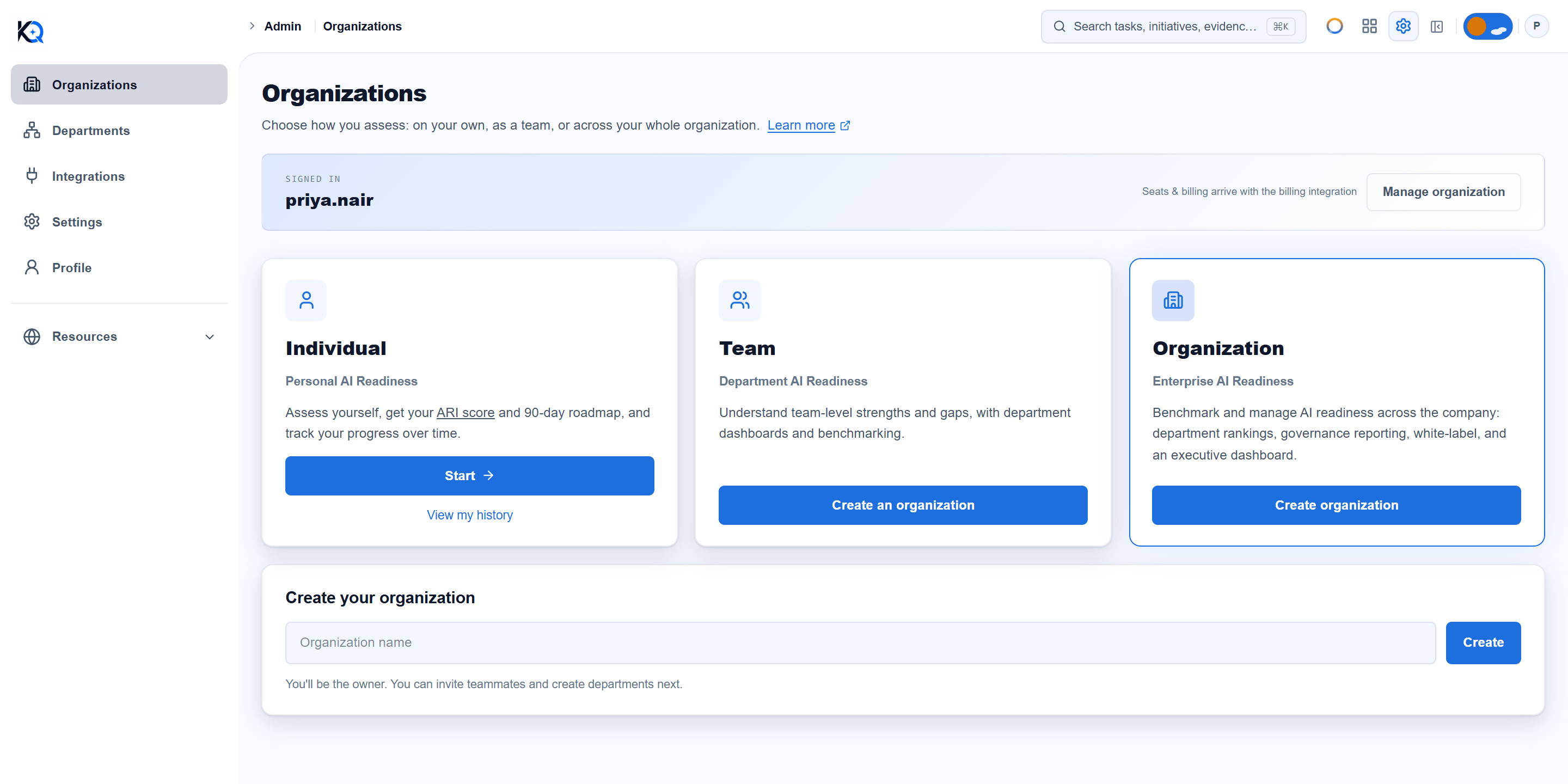
Each card on the page is one way to use KlaritiQ.
- Individual (Personal AI Readiness): assess yourself, get your ARI score and a 90-day roadmap, and track your progress over time. Start opens the assessment, and View my history opens your Dashboard. It is always available.
- Team (Department AI Readiness): team-level strengths and gaps, with department dashboards and benchmarking.
- Organization (Enterprise AI Readiness): benchmark and manage readiness across the company, with department rankings, governance reporting, white-label and an executive dashboard.
Team and Organization are both built on the same thing: an organization that you create and invite people into. When you already belong to one, their buttons read Open and Open console, and both take you to your Dashboard.
How do I create an organization?
You can create one from this page when you do not belong to any organization yet.
- Click Create an organization on the Team card, or Create organization on the Organization card.
- Type a name in the Create your organization box. It needs at least 2 characters.
- Click Create.
You become the owner and land on your Dashboard. The box says the next steps: invite teammates and create departments. If the name cannot be saved, the reason shows in red under the field and you can try again.
Once you belong to an organization, this page no longer offers the form. The page only offers creation to people who have none.
How do I join an organization?
You join by invitation, not from this page. An owner or admin invites your email address from Settings, and you get an email with a link to confirm access. The link expires after 7 days.
Open the link and sign in, or create an account, with the same email address the invitation was sent to. If you are signed in with a different address, the invitation is refused. Click Accept invitation and you join with the role the invitation carried: Member, Admin or Light agent. See the Settings article for what each role can do.
What is the ribbon at the top?
The ribbon above the cards shows Signed in, followed by the part of your email address before the @. On the right, Manage organization opens Settings.
It also carries a note that seats and billing arrive with the billing integration. A Current plan value appears in the ribbon only when plan limits are switched on for your account. When they are off, nothing on this page is locked and no plan name is shown. If limits are on and your plan does not include Team or Organization, those cards are dimmed with a lock and an Upgrade to unlock button.
How do I switch between organizations?
If you belong to more than one organization, a drop-down with their names appears in the top bar. Pick one and every page, such as your Dashboard, Departments and Settings, switches to that organization. KlaritiQ remembers your choice in that browser. With only one organization there is no drop-down.
Your role can differ in each organization. You might be the owner of one and a Member of another, and what you can do follows the role in the organization you have selected.
Common questions
Can I create a second organization from this page? No. The creation form only appears when you do not belong to any organization.
What is the difference between the Team and Organization cards? Both open or create the same kind of organization. They describe different ways to use it: department-level benchmarking for a team, and company-wide ranking, governance reporting and an executive dashboard for the whole organization.
Do I need an organization to take an assessment? No. The Individual card is always open and takes you straight to the assessment. See Taking multiple assessments for how repeat assessments are kept.
I clicked an invitation link but it does not work. Why? The invitation may have expired after 7 days, been revoked by an admin, or already been used. Ask the person who invited you to send a fresh one.
Was this article helpful?
Community Questions (0)
No questions yet. Be the first to ask!
Still have questions?
Contact support