

Workspace Settings, Members and Data Controls in KlaritiQ
Settings is the page where an organization is run: your account, the organization's branding and alert rules, its members and invitations, the audit log, and the controls for exporting or deleting its data. Owners and admins see all of it. Everyone else sees a short read-only view.
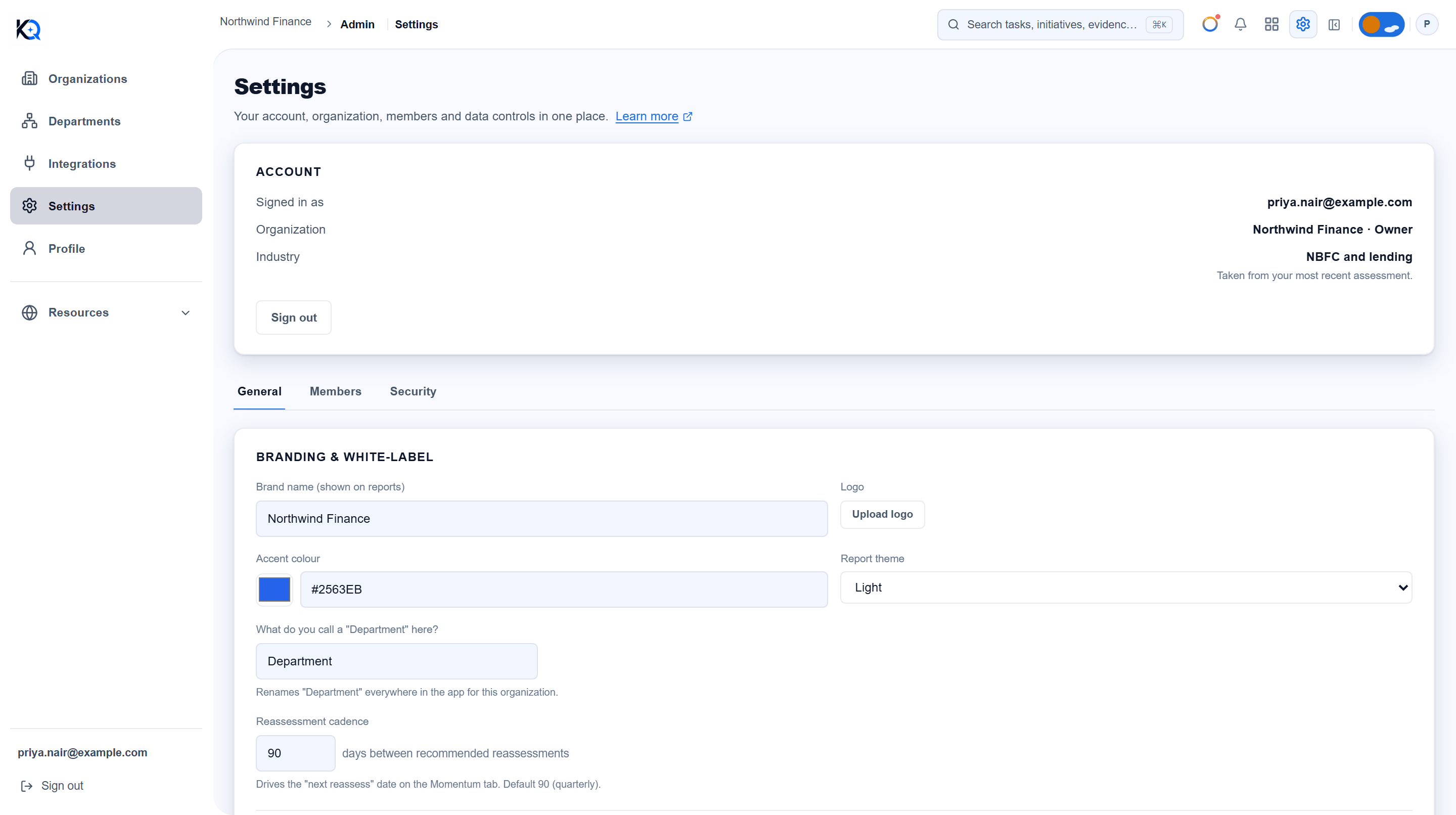
What is on the Settings page?
At the top, the Account card shows who you are signed in as, the organization and your role in it, and the Industry. The industry is the one chosen at your first assessment. If it cannot be loaded, the row says so instead of showing a blank. Sign out is at the bottom of the card.
Below it, owners and admins get three tabs: General, Members and Security. For personal details and your password, use Profile.
Who can change what?
| Action | Owner | Admin | Member | Light agent |
|---|---|---|---|---|
| See the Account card | Yes | Yes | Yes | Yes |
| Branding, alert thresholds, report theme | Yes | Yes | No | No |
| Invite, resend, revoke, change roles | Yes | Yes | No | No |
| Remove a member | Yes | Yes | No | No |
| Audit log, support access, data export | Yes | Yes | No | No |
| Transfer ownership, delete the organization | Yes | No | No | No |
Members and light agents see only a read-only Organization card with the name, what your organization calls a Department, and a Leave organization card.
What can I set under General?
Under Branding & white-label:
- Brand name and Logo, shown on exported reports. Upload an image under 8 MB; it is resized for you.
- Accent colour and Report theme (Dark or Light, so a report can be printed on a light background).
- The word your organization uses for Department, up to 40 characters, such as Division or Practice Area. It renames Department across the app for this organization.
- Reassessment cadence, from 7 to 365 days (default 90), which sets the "next reassess" date on the Momentum tab.
- A checkbox to let owners and admins view individual members' reports. It is off by default, so members' results stay private.
Alert thresholds decide when the system notifies someone rather than letting a problem sit. They are checked hourly: overdue milestones and overdue tasks (a grace period of 0 to 720 hours, where 0 alerts at once), stale blockers (1 to 90 days open), assurance regression (a drop of 1 to 50 points in a week), and stalled sign-offs (1 to 90 days pending before a reminder).
Click Save settings to apply. If the current settings could not be loaded, the page says so and disables saving, so defaults never overwrite your real values.
How do members and invitations work?
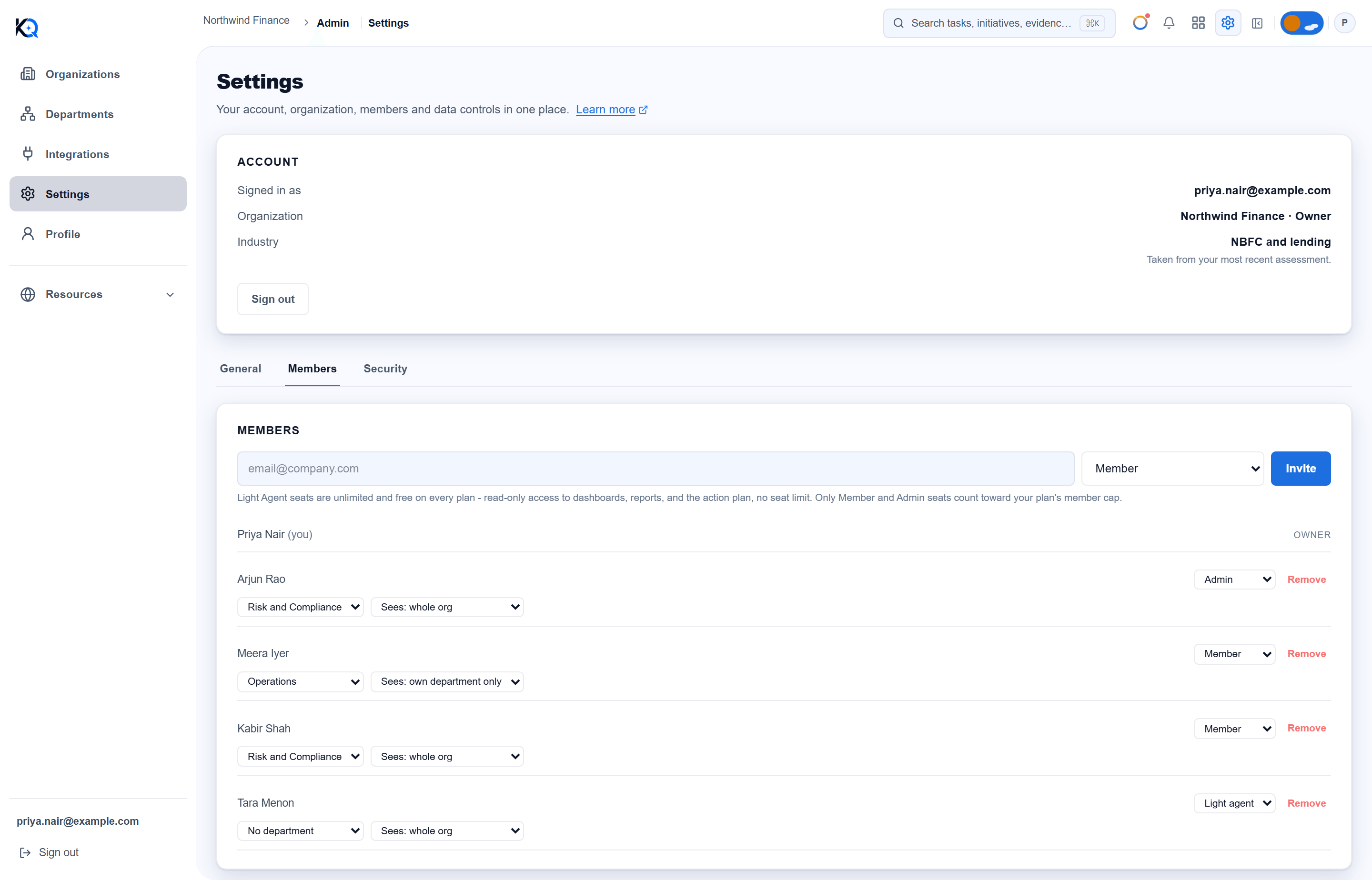
To invite someone, enter an email address, choose Member, Admin or Light agent (free, read-only), and click Invite. They receive an email with a link that expires after 7 days. Light agents get read-only access to dashboards, reports and the action plan, and only Member and Admin seats count toward a plan's member cap.
In the list, each person has a role drop-down and Remove. The owner's row has no controls. When your organization has departments, each person also gets a department drop-down and a visibility choice: Sees: whole org or Sees: own department only. This limits what that person sees, not what they can do. It applies to Initiatives, Risks, Evidence, Decisions, Documents and Capacity, but not yet to the Command Center chat or the Dashboard's department comparison. Pick a department for the person first.
Pending invitations lists each open invite with Resend, which revokes the old link and sends a fresh one, and Revoke. Removing a member cuts their access immediately; you can invite them again later. You cannot remove the owner or the last owner or admin.
What is under Security?
- Audit log: a record of sensitive actions such as invites, role changes and branding edits, with who did it and when, in Indian Standard Time. Export audit trail offers PDF, PNG, CSV or XLSX with a preview. If your plan does not include it, the page says so.
- Support access: off by default, so KlaritiQ staff cannot browse your data. Grant support access needs a reason and a window of 4 hours, 24 hours, 3 days or 7 days (the maximum). It is audit-logged, expires on its own, and you can revoke it early.
- Your organization's data: Export organization data opens a preview where you choose sections (such as Initiatives, Evidence, Decisions, Vendors, Policies, Members) and a format, JSON or XLSX. It is meant for your own records or a data-portability request.
What cannot be undone?
The Danger zone is shown to the owner only.
- Transfer ownership: pick another member and confirm. They become the owner and you become an admin.
- Delete organization: hides it from every member at once. Thirty days later its assessments, documents, initiatives, risks, members and audit log are erased for good. Until then the owner can click Restore under Recently deleted organisations on the same tab.
Removing members, transferring ownership and deleting an organization need a recent sign-in. If yours is too old, KlaritiQ sends you through sign-in and back.
Common questions
Why do I only see the Account card? Branding, members and data controls are for owners and admins. Ask one of them if you need a change.
Does a light agent cost a seat? No. Light agent seats are unlimited and free.
Can I get my data out before deleting? Yes. Use Export organization data under Security first. Deletion is reversible only for 30 days.
Was this article helpful?
Community Questions (0)
No questions yet. Be the first to ask!
Still have questions?
Contact support