

Your Profile, Security and Two-Factor Settings in KlaritiQ
Your Profile is the page for you as a person, separate from any organization: your name, photo and job title, your sign-in security, and the history of the assessments you have taken. Changes here follow you into every organization you belong to.
What can I change on my profile?
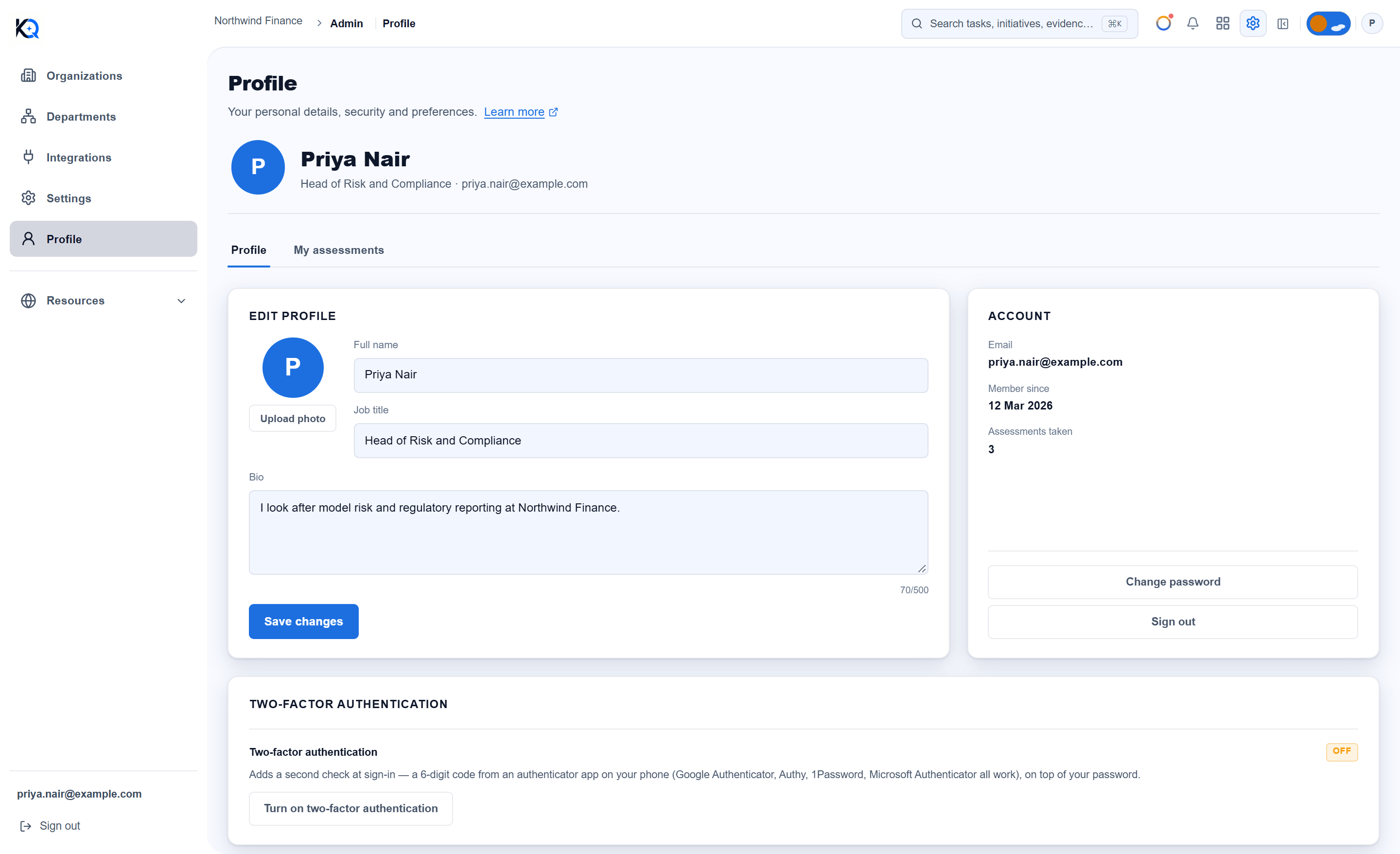
The Edit profile card has four fields:
- Upload photo: choose an image under 8 MB. It is cropped to a square and resized for you. Remove photo clears it.
- Full name: required, up to 200 characters. An empty name is refused.
- Job title: optional, up to 120 characters.
- Bio: optional, up to 500 characters, with a live counter.
Click Save changes. Nothing is saved until you do, and a message confirms Profile updated or says why it failed. The banner at the top of the page shows your photo (or your first initial), name, job title and email.
What does the Account card show?
It shows your Email (with an Unverified label if you have not confirmed it), Member since, and the number of Assessments taken. Two buttons sit below:
- Change password opens the forgot-password page, where you can set a new password.
- Sign out ends your session on this device.
How do I turn on two-factor authentication?
The Two-factor authentication card shows Off or On. When it is off, you add a second check at sign-in: a 6-digit code from an authenticator app such as Google Authenticator, Authy, 1Password or Microsoft Authenticator, on top of your password.
- Click Turn on two-factor authentication and confirm your password.
- Scan the QR code with your app. If you cannot scan it, type the key shown instead.
- Save the backup codes shown, then tick the box that says you have saved them.
- Enter the 6-digit code from your app and click Confirm and turn on.
Nothing is switched on until a real code from your app is accepted, so closing the page halfway changes nothing. Once it is on, you will be asked for a code at your next sign-in. The same card lets you Get new backup codes, which stops the old ones working, or turn it off. Both ask for your password again.
Profile has no list of your active sessions and no notification or theme settings. The line about preferences in the page header refers to the personal details above.
What is under My assessments?
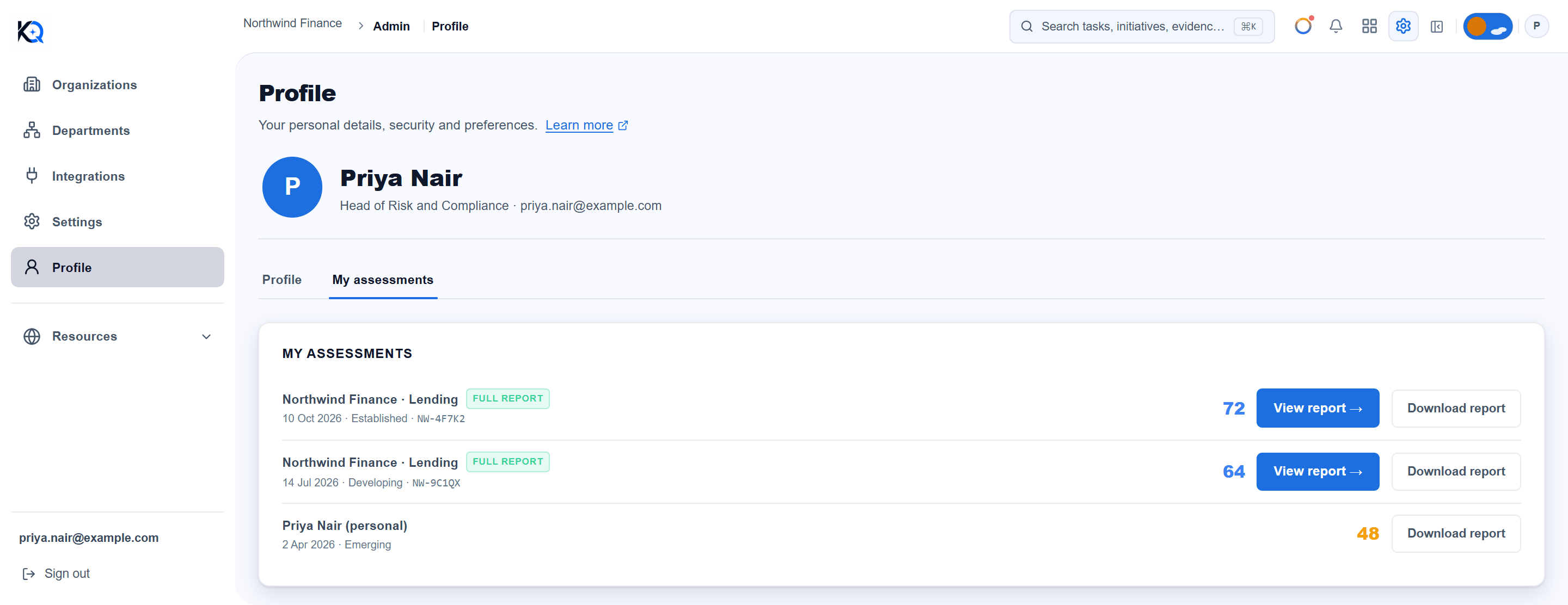
This tab lists the assessments you have taken, newest first, up to 200. Each row shows the firm name and industry (Lending, Manufacturing or Diagnostics), the date, the tier, a case reference where there is one, and the score.
- View report opens the live report for that case. It appears only on assessments that have a case reference.
- Download report opens that assessment's downloadable report.
- A Full report label means the full report is still stored. Only your three most recent assessments keep one.
If you have none, the tab says so and offers Take assessment. If the list cannot be loaded, it says Couldn't load your assessments with a Retry link, rather than showing an empty list. See Taking multiple assessments and the ARI score for how results are read.
What can other people see about me?
Colleagues in an organization see your name, photo, job title and role where people are picked or shown, such as the owner of an initiative. Owners and admins also see your name and email on the Members tab in Settings. Your bio is not included in those lists.
Your assessment results stay private to you unless an owner or admin has switched on the setting that lets them view individual members' reports. It is off by default.
How do I delete my account?
Delete my account locks your account straight away and erases it 30 days later. That removes your profile, your assessments and answers, your Command Center chats, and any organization where you are the only member. We email you a link to restore the account during those 30 days.
If you own an organization that has other members, transfer ownership first, or the request is refused. It also needs a recent sign-in. The full list is on Data retention.
Common questions
Why can I not change my email address? The Profile page has no email field. It only shows the address you signed up with.
Does my photo or job title change per organization? No. They belong to your account and appear in every organization you are in.
What are backup codes for? They let you finish signing in if you cannot get a code from your authenticator app. Keep them somewhere safe. Generating new ones makes the old ones stop working.
Can I undo account deletion? Yes, for 30 days, using the link in the email. After that the data is erased.
Was this article helpful?
Community Questions (0)
No questions yet. Be the first to ask!
Still have questions?
Contact support